How to Use MT Manager: A Step-by-Step Android Guide
Open MT Manager, put your source folder in one panel and your destination in the other, then select a file and choose an operation. That is the basic workflow. This guide shows you how to use MT Manager for everyday files, ZIP archives, text editing and APK inspection.
Before You Start
Install the Android package, open it and review its storage-access requests. Use a spare text file and an empty practice folder for your first task. You do not need root for ordinary operations in accessible folders.
- Leave enough free space for copies and extracted files.
- Keep the original separate when practising edits.
- If Android requests installation permission, grant it only to the app opening your downloaded package.
These illustrations use historical tutorial screens with ImageGen presentation. The dark screens show version 2.11.1; newer releases may place some controls differently.
How to Use MT Manager: Eight Practical Steps
1. Open the App and Choose Your Storage
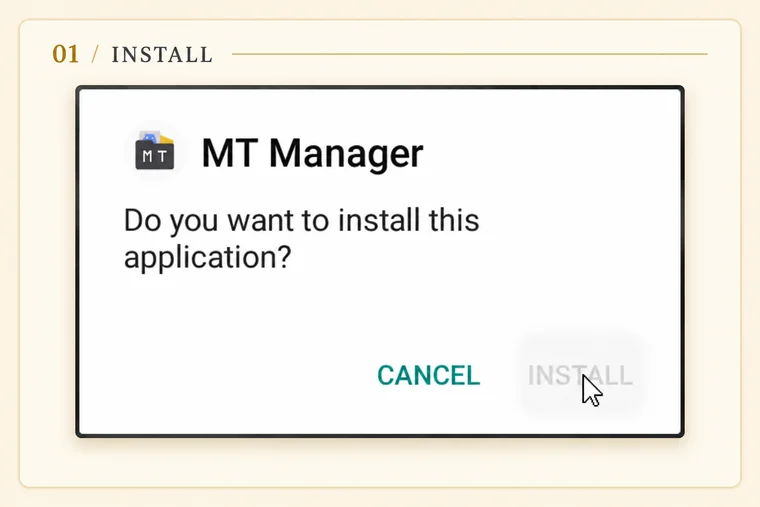
If you have not installed the app, open its downloaded APK and follow Android’s installation prompts. Review the user agreement and file-access requests when you first launch it.
Open the side menu and choose your storage location. Start with Downloads or Documents. Seeing a root directory in the menu does not mean you can change its contents.
2. Set Up the Two Panels
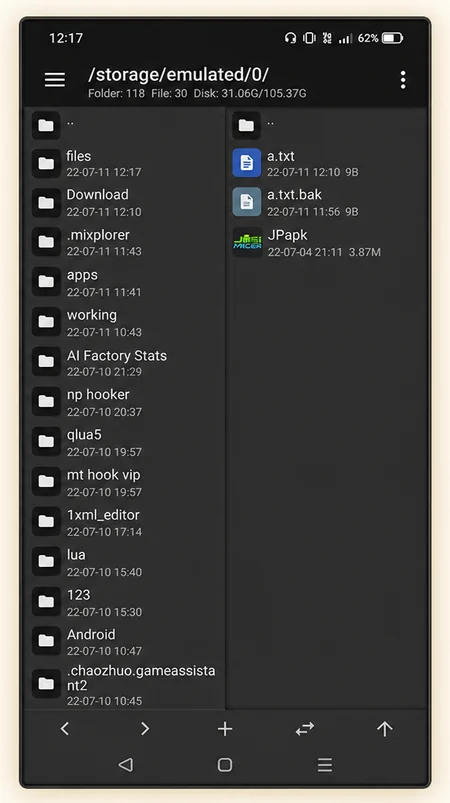
Tap a folder to open it in the active panel. Open the destination folder in the opposite panel before copying anything. Both sides are file browsers; the right side is not a separate APK toolbox.
The opposing-arrow Sync control brings the other panel to your current location. You can then enter a nearby destination folder. Check the displayed path whenever you switch panels.
3. Create a Practice Folder and Text File
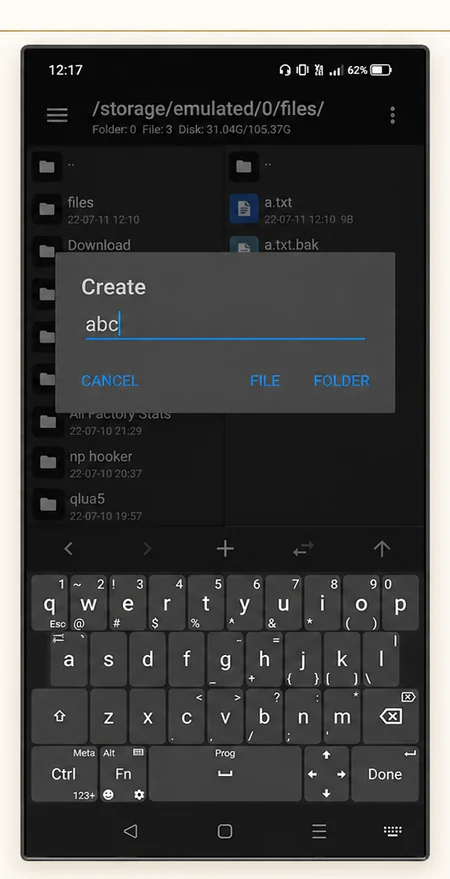
Open the folder where you want to work, tap the plus button, enter a name and choose Folder. The example screen shows the name “abc”; you can choose a clearer name such as “Practice”.
To create a text file, tap plus again, enter “notes.txt” and choose File. Keep the .txt extension so the app can identify the file type.
4. Select, Copy, Move and Rename Files
Swipe a file sideways to enter multi-selection, then select additional items. Long-press your selection to open its available operations.
With source and destination already open, choose Copy to duplicate files into the other panel. In this two-panel workflow, there is no separate Paste step. Move transfers them instead. Check the destination before confirming.
For a filename change, long-press the item and choose Rename. Preserve its extension unless you intend to change it.
To delete an unwanted practice file, choose Delete, review the selection and confirm. Do not test deletion on your only copy.
5. Create a ZIP or Extract Selected Contents
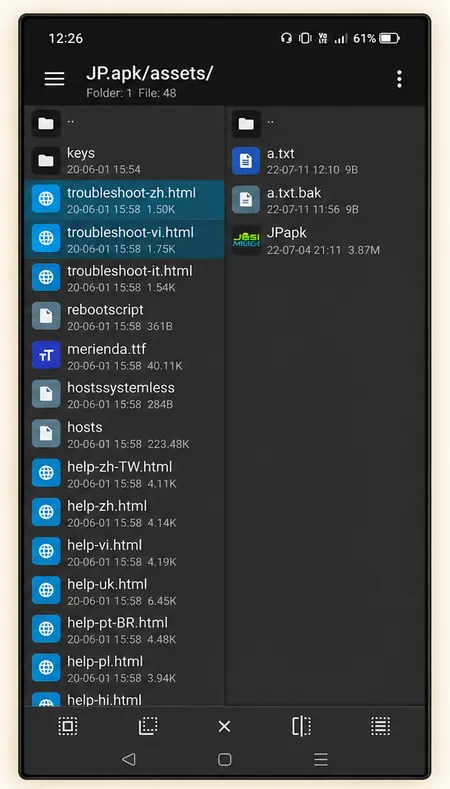
To create an archive, select ordinary files, long-press them and choose Compress. Choose ZIP, review the output name and location, then confirm.
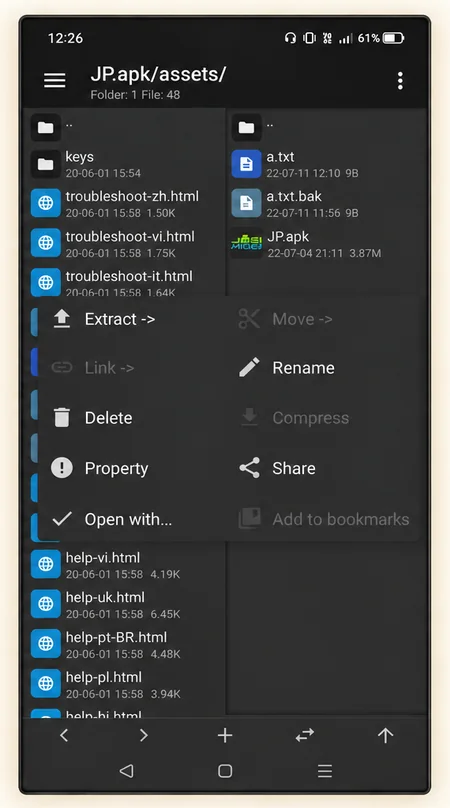
To extract, open an archive in one panel and your output folder in the other. Select the entries you need and choose Extract. The illustration shows that menu inside a package archive. Some operations are unavailable while browsing archive contents.
Extract into an empty folder first. If an overwrite prompt appears, compare filenames before replacing anything already present at the destination.
After extraction, open one file and confirm that its contents are readable.
6. Edit and Save a Text File
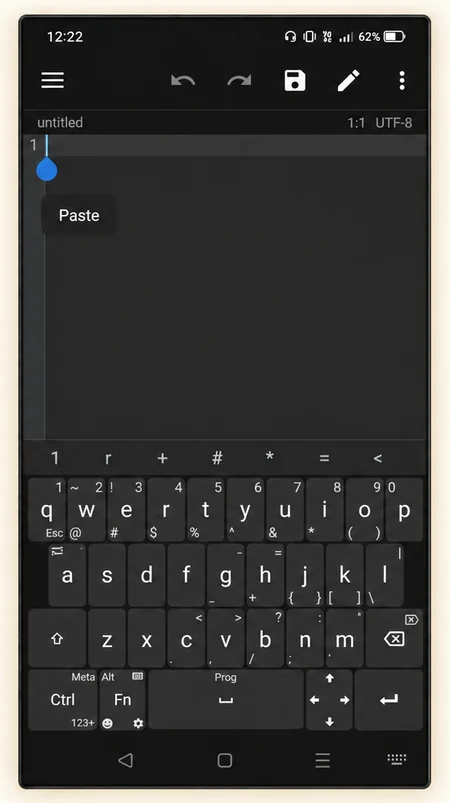
Tap “notes.txt” and choose the text editor if an opening-method menu appears. Enter a short sentence, then tap the save icon. Reopen the file to check your saved text.
If tapping opens the wrong viewer, long-press the file and choose Open with. Work on a copy before editing configuration files. Keeping a file open in the editor is different from saving it.
For scripts and configuration files, keep the original encoding and punctuation. A missing quote or bracket can make a saved file unusable.
7. Inspect an APK Without Changing It
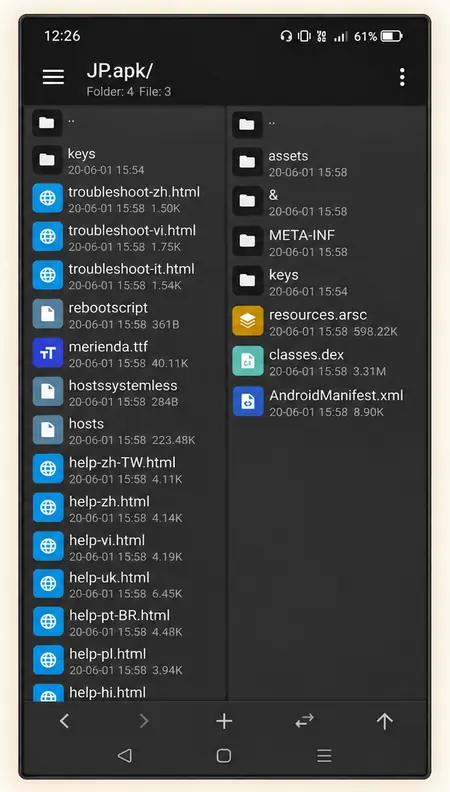
Locate an APK, tap it and choose View when the package-information dialog appears. You can browse entries such as AndroidManifest.xml, classes.dex, resources.arsc and assets.
Start by reading, rather than deleting or replacing components. APK inspection and APK installation are different actions. Editing or signing a package can affect installation and updates; advanced tools also have their own access requirements.
8. Find Files Faster and Save Bookmarks
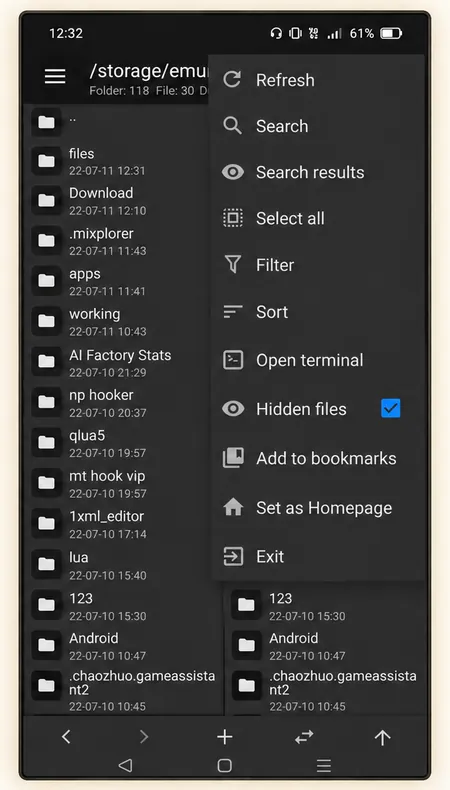
Open the three-dot menu and choose Search to find a filename. Filter narrows the current listing. You can also long-press Sync to enter a filter term.
For a folder you visit often, open its menu and choose Add to bookmarks. Swipe up from the bottom bar to access saved bookmarks. Use Sort when arranging a long list by name, size or date is easier than searching.
Common Problems and What to Check
| Problem | First check |
|---|---|
| File went to the wrong folder | Confirm the opposite panel’s path before repeating. |
| Folder opens but cannot be edited | Check storage permissions and Android restrictions. |
| Archive extraction fails | Check free space, archive integrity and destination access. |
| Edited text disappears | Save the file, then reopen it to verify. |
Frequently Asked Questions
How to Use MT Manager Without Root?
Work within accessible storage. Ordinary copying, archives and text editing do not require system access.
Do you need VIP for every task?
No. Some advanced editors and tools require VIP; basic file management is a separate starting point.
What should you practise first?
Learn how to use MT Manager by creating a folder, copying “notes.txt” into it and checking the result before trying more complex files.